How to use the IF statement in Excel when you had two
conditions that had to be met. For example, when sales fell between a
minimum and maximum number. Let’s take a look at our example again. Note
that I’ve added the maximum amount of $200K into cell B3:
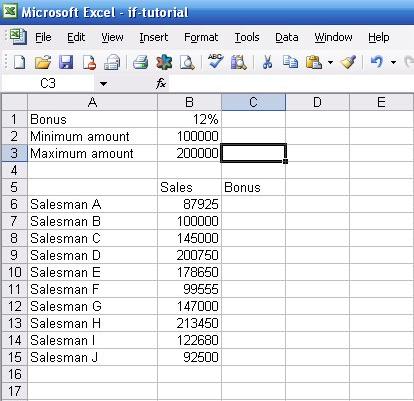
Before we go further, if you’d like to work through the examples
yourself, here’s the raw data you can copy into an Excel worksheet.
First, open up a blank excel worksheet. Next, highlight the table below.
Copy it, and then go back to your excel worksheet. Go to cell A1 (or
another empty cell, if you want to put the data elsewhere), and then
select “Edit” from the menu bar. Select “Paste Special” and then “Text”
from the popup box. Click “OK”. The data should appear in your Excel
worksheet just as it does above.
Ok,,,,
Now, let’s suppose sales have to be greater than or equal to $100K and less than $200K for a salesman to receive a 12% commission rather than just be greater than $100K, as in our introductory example. How would you write that in “Excel-speak”?
It turns out that you can use Excel’s AND function, which Excel calls a logical operator (just like it calls the IF function). And, as usual, unlike how most other programming languages work, the syntax required in Excel is a bit different. To use it correctly, you have to write it like the following:
=AND(first condition, second condition, …, etc.)
(In other programming languages, AND would fall in between each condition, just like how we normally talk, but not in Excel!)
Let’s go back to the concrete example. To write the condition that sales have to fall betwen $100K and $200K for the salesman to receive a 12% commission, we’d write the following in cell C6:
=IF(AND(B6>=$B$2, B6<$B$3),B6*$B$1,"No bonus")
Like this:
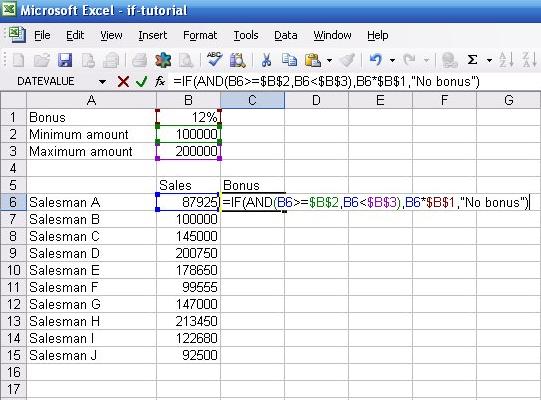
Translated into plain English, our IF statement now reads, “If B6 is greater than or equal to B2 and B6 is less than B3, then multiply B6 by B1. If not, then put ‘No bonus’ into the cell.” In the first case, our salesman didn’t meet the $100K requirement, so the AND function returned a false, so the IF statement put “No bonus” into the cell. By the way, in our case, we only had two conditions to meet, but if we had more, we could just keep adding them into the list of conditions in the parenthese after the AND function.
| Bonus | 12% | |
| Minimum amount | 100000 | |
| Maximum amount | 200000 | |
| Sales | Bonus | |
| Salesman A | 87925 | |
| Salesman B | 100000 | |
| Salesman C | 145000 | |
| Salesman D | 200750 | |
| Salesman E | 178650 | |
| Salesman F | 99555 | |
| Salesman G | 147000 | |
| Salesman H | 213450 | |
| Salesman I | 122680 | |
| Salesman J | 92500 |
Now, let’s suppose sales have to be greater than or equal to $100K and less than $200K for a salesman to receive a 12% commission rather than just be greater than $100K, as in our introductory example. How would you write that in “Excel-speak”?
It turns out that you can use Excel’s AND function, which Excel calls a logical operator (just like it calls the IF function). And, as usual, unlike how most other programming languages work, the syntax required in Excel is a bit different. To use it correctly, you have to write it like the following:
=AND(first condition, second condition, …, etc.)
(In other programming languages, AND would fall in between each condition, just like how we normally talk, but not in Excel!)
Let’s go back to the concrete example. To write the condition that sales have to fall betwen $100K and $200K for the salesman to receive a 12% commission, we’d write the following in cell C6:
=IF(AND(B6>=$B$2, B6<$B$3),B6*$B$1,"No bonus")
Like this:
Translated into plain English, our IF statement now reads, “If B6 is greater than or equal to B2 and B6 is less than B3, then multiply B6 by B1. If not, then put ‘No bonus’ into the cell.” In the first case, our salesman didn’t meet the $100K requirement, so the AND function returned a false, so the IF statement put “No bonus” into the cell. By the way, in our case, we only had two conditions to meet, but if we had more, we could just keep adding them into the list of conditions in the parenthese after the AND function.

No comments:
Post a Comment